
If an email comes in that appears to be suspicious or malicious, report it using the built-in function on Outlook!
There are multiple ways to do so, and any of the below options work. If you are ever unable to report an email, or have any questions, feel free to submit a ticket with the Service Desk.
In Outlook:
- Find the suspicious email in your inbox, and right click on the email in your inbox. DO NOT CLICK ON ANY OF THE LINKS WITHIN THE EMAIL.
- Select "Phish Alert" towards the bottom of the page
- Once reported, it will be reviewed by our cyber security team and any further information found will be relayed to you regarding legitimacy.
If using "New" Outlook or the online version of Outlook (https://outlook.office.com/):
-
Select the 3 dots in the top-right and scroll down to the Phish Alert option.
- Once reported, it will be reviewed by our cyber security team and any further information found will be relayed to you regarding legitimacy.
If using the mobile app version of Outlook
- Open the email, but do NOT click any links within the email.
- Select the 3 dots next to the Subject of the email
- Select the Phish Alert option that appears to report the email
If you received a suspicious text message;
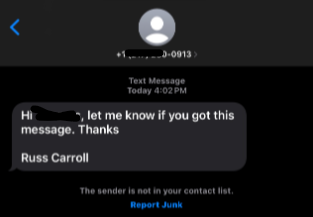
- Block the number and if given the option, report as spam or junk to your cell phone carrier.
- The Service Desk is unable to track or prevent these messages on personal devices, so the best option is to NOT respond and block the number to prevent future texts
Comments
0 comments
Please sign in to leave a comment.