
These steps are meant to help when troubleshooting the Five9 Softphone not loading fully, or giving error messages. If these steps do not resolve your issue please feel free to reach out to the Help Desk for further assistance!
If you are having issues with your headset specifically, please try the steps listed in this article
If you receive an error regarding your password or account being locked, such as the below, please reach out to the Help Desk to have your password reset.
The user name or password that you provided is incorrect, or the account is locked. If you feel that you received this message in error, contact your Five9 administrator.
Other Common errors this troubleshooting guide is for;
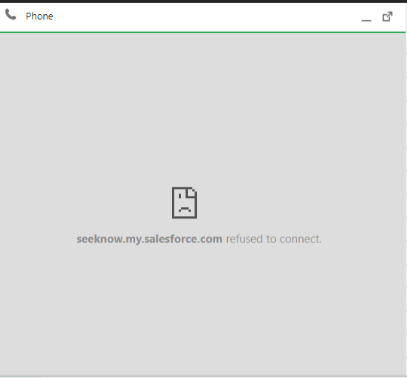
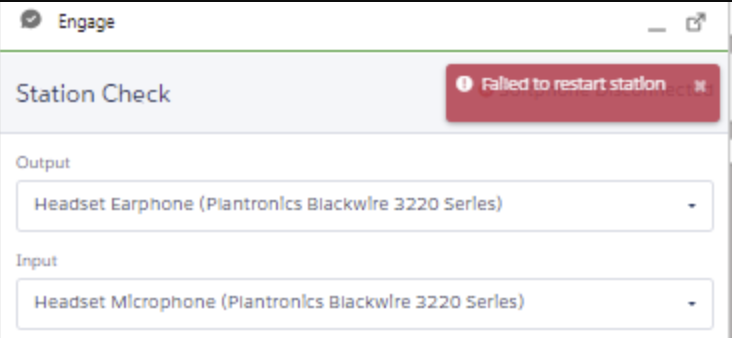
-
Ensure you are using Google Chrome
Always use Google Chrome as your browser when using Five9. The icon should look like the following;
-
If you are a Concentrix user, ensure the AnyConnect VPN client is disconnected
- Go to Start
- Search "AnyConnect"
- Open the AnyConnect VPN Client
- If the button on the application shows "Disconnect" select this.
- If the buttons shows "Connect" then it's already disconnected and this step is complete.
-
Restart your computer
- You may have shut down the computer before, but be sure to do a Restart by going to Start > Select the Power Button > Restart
- You may have shut down the computer before, but be sure to do a Restart by going to Start > Select the Power Button > Restart
-
If you are working from home: Restart your router & modem.
- Find your router and modem, and unplug both from the wall outlet. Wait a full 60 seconds, and then plug back in. It may take another minute or two for internet to come back in your house, but once it's back on try re-connecting to Five9.
- Find your router and modem, and unplug both from the wall outlet. Wait a full 60 seconds, and then plug back in. It may take another minute or two for internet to come back in your house, but once it's back on try re-connecting to Five9.
-
Clear cache in Chrome
- This guide goes in detail for how to clear cache in Chrome;
https://support.seek-now.com/hc/en-us/articles/12780367370395-How-to-Clear-Cache-in-Chrome - Once cleared, close all open Google Chrome tabs and re-open.
- This guide goes in detail for how to clear cache in Chrome;
-
Clear Data on Site Settings
- With Salesforce open, Select the lock icon in the top of Chrome
- Ensure the Notifications slider is on, if available.
- Select Site Settings
- Select Clear Data in the top > Clear
- Ensure all permissions are on Allow. Most importantly the Microphone, Pop-ups and Redirects, and Insecure content are on Allow.
- Once complete, refresh the Salesforce page.
Comments
0 comments
Please sign in to leave a comment.